Disclaimer
I am not a doctor, nor do I hold any special degrees or training in medicine or nutrition. Therefore, the recommendations that I am following could easily change as more information becomes known through study and research. I encourage you to do your own research as I have done. Many of the past studies as well as current ongoing studies are available to read at no cost.
Much of the information I write abut comes from reading Dr. Terry Wahls' book, The Wahls Protocol. I will also include information from studies I have read and will include a list at of those studies the end of this post. Once again, I am not a professional. My intent is to point you in a particular direction. My hope is that after reading this post, if you think this protocol is something you want to know more about, you will purchase Terry’s book and do your own research.
Please consult with your own doctor before trying this or any nutritional therapies. Attempting this protocol can be harmful if not followed properly. This protocol is not for everyone and should be considered in the same regard as new medication or supplementation. Consideration must be made for how it interacts with current medications as well as ongoing illness.
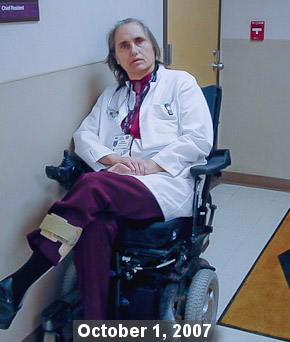
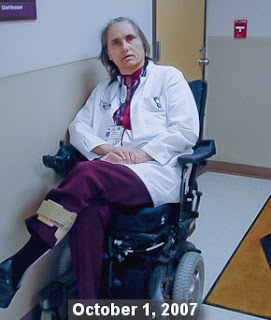
Terry Wahls used to run marathons, ski the American Birkebeiner and climb the mountains of Nepal. She even won a bronze medal in women’s full contact free sparring at the trials for the 1978 Pan American Games in Washington DC. She was also a doctor when, in 2000, she was diagnosed with MS. By 2007 she was in a tilt wheelchair, barely able to breathe sitting up. She was 52 years old. At this time she was on the same medication that I am currently on. I am also on an additional
two
chemotherapies that were not on her list.
Prior to this time, in 2002, her neurologist directed her to the website of a doctor who had reported that his son’s MS had improved by changing his diet. As a physician, she was hesitant to look into anything that seemed like “alternative care." Much to her surprise, the website was full of scientific references. She began to read them one by one. And what she found out was that this was not what she called "fringe medical practices", this was a website full of scientific references. It contained peer-reviewed journals written by scientists from the best medical schools. It was legitimate research. And it was in reading these studies that she became very interested in the role excessive carbohydrates and sugars played in the excess of insulin and inflammation.
Knowing that conventional medicine was not stopping the progression of her disease, she decided to change her diet and see if it had any impact while she continued her research. She read every mouse study she could get her hands on. She researched Parkinson’s disease, Alzheimer’s disease, Lou Gehrig’s disease and Huntington’s disease. She discovered that,
“...
…”
She translated those mouse-size nutrient amounts into human-sized ones. She consulted her doctor and they decided that each one was safe to add to her list. She took those amounts in pill form for two months and at the end of two months was so disappointed in the results she quit taking them. Within a few days she could not get out of bed.
It
was
working!
So she went to the Institute for Functional Medicine to find more information. Through educating herself she learned that she could improve the condition of her mitochondria and brain cells. She knew that she had a genetic vulnerability that increased her chances of getting MS, but now she was developing a much better idea of the significance of leaky gut, food allergies, and toxins. And that mitochondria that were not providing enough energy for the cells, neurotransmitter problems and not having inefficient enzymes for the metabolism of B vitamins and sulfur all had a very significant impact on the BRAIN. She worked with doctors, scientists and nutrition experts and came up with a list of foods that would provide all the nutrients she needed without taking one single pill. This was the beginning of the Wahls Diet.
"The old me, who had relied on drugs and procedures to make my patients well, who had been made progressively more feeble by my illness, had been replaced with someone who understood intellectually and physically that disease begins at a cellular level, when cells are starved of the building blocks they need to conduct the chemistry of life properly, and that the root of optimal health begins with taking away the things that harm and confuse our cells while providing the body with the environment in which to thrive. I finally understood what I had to do to provide my cells with all the building blocks of life that they needed to heal. I was doing it, and it was working."

Today, Terry Wahsl still has MS. But she has not only improved her quality of life she has reversed much of her disease. And instead of being bound to a tilt wheelchair with a progressive disease she had no control over, she is once again an active, thriving doctor who rides her bike to work everyday, travels around the world lecturing to the medical community, appears on webinars, interviews, radio shows and talk shows. She has created a website where people can read her newsletters, watch recorded lectures and gain community support. She is also involved in ongoing research and clinical trial as well as written the
The Wahls Protocol
.
Terry’s overarching message to those with chronic disease is that
you don’t have to be a victim
.
You can actually repair your broken biochemistry and restore your body's vitality by how you live your life.
That’s huge news for anyone with an autoimmune disease! Instead of taking pills for symptoms, she was living proof that you could eat food to heal your body at a cellular level. Chronic disease is never a deficiency of the drugs you are taking
for
it, but a deficiency in your own cells and it is the most obvious manifestation of long term mitochondrial dysfunction. When your mitochondria are not fueling your body correctly, entire bodily systems don't work properly and in a negative spiraling chain reaction, eventually lead to organ dysfunction and chronic disease.
"Diabetes, heart failure, hepatitis C, fibromyalgia, schizophrenia, mood disorders, epilepsy, strokes, neuropathy, memory problems and autoimmune disease are just a few disease linked to mitochondrial dysfunction."
A little biochemistry.
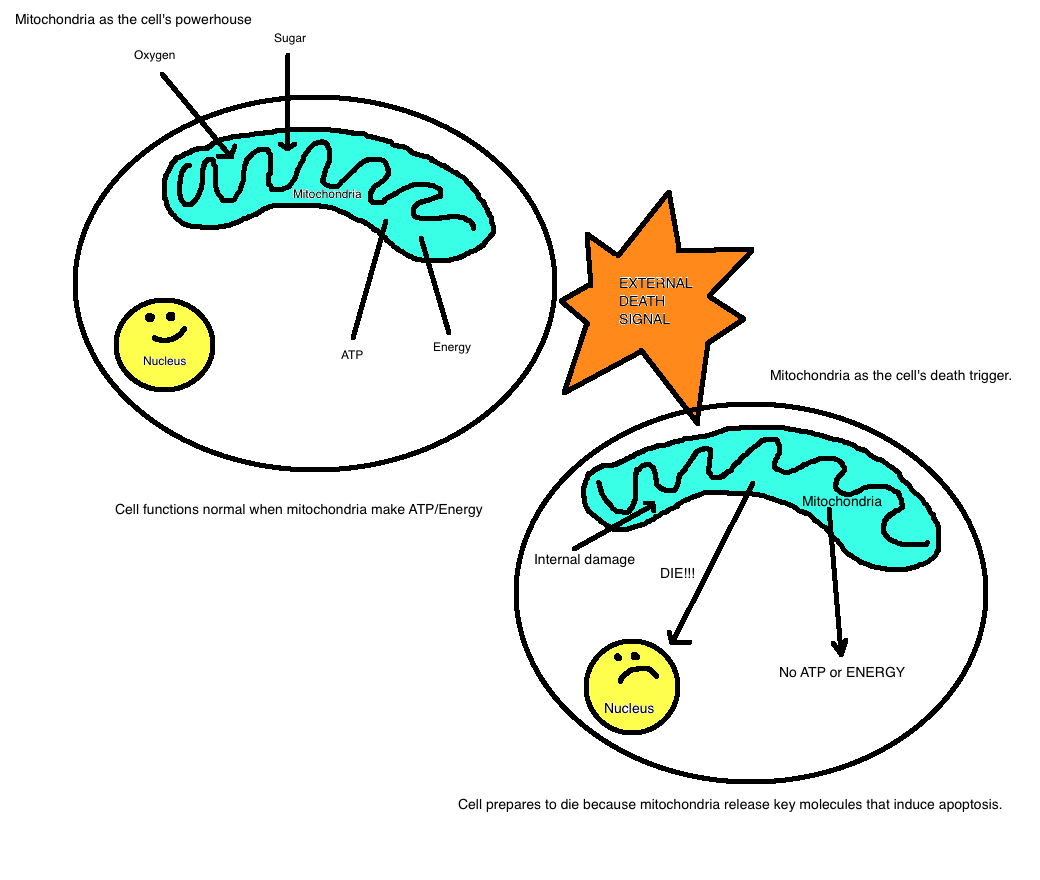
Most cells in your body contain mitochondria. Some have a lot more than others. The more energy a cell needs to function properly, the more mitochondria it needs to produce the energy it needs. For example, your brain, retina, heart and liver cells all contain a lot more mitochondria that most other cells because thinking, seeing, pumping blood and processing toxins are all things that require high energy.
All cells eventually die and it is the job of mitochondria to send the signal when that time is appropriate. (Not before!)
Mitochondria also produce ATP (adenosine triphosphate) which stores energy, helps your body to create proteins and antibodies, and it is the FUEL used by our cells for ALL that they do. Without it, cells begin to function improperly and eventually die prematurely.
To produce ATP efficiently, the most important things your mitochondria need are glucose or ketone bodies from fat and oxygen.
Your mitochondria can get by for awhile on only those things, but to do the most efficient job and to live they also need vitamin B1, B2, B3, B5, sulfur, zinc, magnesium, iron, manganese, antioxidants, L-carnitine, alpha-lipoic acid, creatine and coenzyme Q. They also need to be protected from toxins like arsenic, lead and mercury. If this basic process does not happen your cells will produce
less
energy and
more
waste (free radicals).
Dr. Wahls gives a great example of the progressive signs of mitochondrial dysfunction in a person’s life,
I hope you can still remember a day when you felt well. You could work or play all day and you felt happy, or at least normal, in your body. At some point, however, you probably noticed some subtle changes. Perhaps you noticed that you couldn’t move as freely or think as clearly, or you began to experience pain. These very outward symptoms were a signal that your biochemistry was changing. The signaling between your cells was gradually becoming confused.
You could recognize that you didn’t feel well, though you may not have been able to explain precisely what was amiss. You eventually saw your doctor, who performed an examination and conducted blood tests but found nothing wrong. Perhaps you were told to come back in a year. When you did, you felt a little worse than you did the year before, but all your tests still looked okay and the doctor continued to say you were “fine.” Perhaps this dance went on for years, perhaps decades, before your body finally suffered enough damage that a test or two began to come up abnormal. Finally, your doctor began to investigate more seriously. And perhaps, at long last, you were given a diagnosis. Your doctor had not been trained in functional medicine, and so opportunities to recover your vitality were missed, but the inexorable process of biochemical decline was happening all along, through all those years of negative test results and doctors reassuring you. Your body began to produce and accumulate incorrectly made molecules in your cells and your organs. To you, you probably felt like the music of your life slowly began to deteriorate, note by note, losing the melody and harmony, moving from a beautiful symphonic concert to a chaotic noise. That is how it felt to me.
At a cellular level MS, autoimmune disease and chronic diseases like diabetes and heart disease and some mood disorders like depression, autism and schizophrenia all look pretty much the same - they all share mitochondrial dysfunction.
Health problems begin in the cells.
If your dysfunctional cells produce symptoms of X, Y and Z...they label you with MS. If your dysfunctional cells produce symptoms of A, B and C...they label you with Lupus. If your dysfunctional cells produce symptoms of L, M and N...they label you with heart disease, and so on. Like Terry says, diagnosis are simply "labels doctors put on conditions, based on parts they can actually quantify, like symptoms, test results and which medications improve or worsen symptoms, as well as through a process of elimination." Remember that when giving weight and importance to getting a diagnosis.
When science looks at the cellular level, all autoimmune diseases have six common characteristics according to Dr. Wahls.
-
Mitochondria are strained, producing energy inefficiently and producing too much waste. This leads to too many free radicals in the body, which damage cells.
-
The immune cells are too reactive, leading to excessive inflammation throughout the body.
-
The immune cells specifically attack “self” or cell structures that belong to us.
-
Toxins such as lead, mercury, and pesticides stored in the body and chronic low-grade infections such as Lyme disease or even periodontal (gum) infection worsen autoimmune-related symptoms.
-
Low vitamin D and excessive hormone levels are present, both which worsen inflammation.
-
Deficiencies or excesses of particular vitamins, minerals, essential fatty acids and antioxidants phytonutrient molecules are common.
Your DNA could very well predispose you to certain diseases. These mutated DNA could effect inflammation control, how toxins are managed, how we absorb nutrients, how effective hormones work and effectiveness of neurotransmitters. But the truth is that scientists believe that it’s epigenetics (your environment and what you eat) that determine about 70-95 percent of your risk of developing those diseases. Very few conditions are caused solely by a single mutation in your DNA. Those mutated DNA can be sitting there causing you no problem whatsoever and then if you have enough cellular dysfunction (caused by the lack of proper nutrients and the presence of toxins, including those the body creates during times of stress), those DNA switches that are turned off
can easily be turned on
. The simple flip of a genetic switch. You can not only stop that switch from being turned on, you can actually reverse cell damage. Terry Wahls and countless other patients are living proof. My goal is to be part of that growing (and healing) body of evidence!
What is The Wahls Diet?
The development of the Wahls Diet did not happen all at once. As Dr. Wahls learned information from her own experience, from clinical trials and previous studies, various steps of the diet were developed. What exists today is a diet that can be customized in regards to the needs of the individual. For example, is the diet solely for the purpose of eating healthier, is it for someone already suffering from mild chronic illness or is it for the patient already in a specific disease state? Depending on the need, there are three levels,
-
The Wahls Diet.
The most basic level that kick-starts your system by infusing it with intense nutrition and removing dietary elements that could contribute to your decline.
-
Wahls Paleo.
The next level, and the level where many people choose to stay, provides more structure to further eliminate dietary elements that can compromise gut health.
-
Wahls Paleo Plus.
The most difficult level is also the most therapeutic for those with autoimmune conditions and is particularly beneficial for anyone with neurological or psychological issues, whatever the underlying disease state, as well as those with a history of cancer. (Only at this level is a state of ketosis maintained)
There is a long history of the use of various forms of ketogenic diets. Much of that history littered with outcomes that came with a price. Dating back to the early 1900’s, ketogenic diets were used for people with diabetes (people who needed to survive on a diet with no carbohydrates) and epilepsy. And to this day doctors will place children with severe epilepsy on it.
Historically, the studies were successful in stopping seizures, but most children ended up nutritionally starved and suffered from things such as kidney stones, loss of vitamin C, too much uric acid, malnourishment and fractures. As time went on, variations of the diet included increasing fats so that more nutrient dense carbohydrates could be included. As science has learned more about nutrition, outcomes have improved significantly. Ketogenics can be highly effective with certain neurological conditions but can cause serious health issues if not implemented correctly.
 Dr. Wahls version of the ketogenic diet is one that includes and is limited to the use of Medium Chain Triglyceride fats only, such as coconut oil and olive oil. When you are on a ketogenic diet, the body is in a state of ketosis. Ketosis is when there are ketones present in the blood. Ketones can replace glucose as an energy source for the cells. They are very small molecules that are soluble by water and can cross cell membranes and diffuse all through the body. Ketones can also get to places without a blood supply, so in cases of heart attack, stroke or TBI, they can help you stay alive. The are a very interesting and extremely powerful macronutrient and have huge applications for healing. They diffuse into the brain and the brain can use them for energy. The brain does not absorb fats very well from the body and relies primarily on glucose (which needs transporters to get around) for an energy source (cells need energy to function properly). Ketones can replace glucose as an energy source in the brain. For people with conditions of the brain, this can be incredibly beneficial.
The difference between the Standard Ketogenic Diet and Dr. Wahls' Medium Chain Triglyceride(MCT) Diet has to do with how long the triglyceride is. The longer the chain the more ketones are produced, and therefore the more carbohydrates can be tolerated (making this even more nutrient dense than the standard diet.)
At this point in my findings, I had a lot of questions. Some were answered in Terry’s book. Some were answered, but I felt those answers were tailored more towards MS. Some sent me reading journals, studies and whatever scholarly articles I could find. For me, I need to understand the science before it makes sense to me. And this protocol makes more sense than anything I have ever researched or done. Prior to getting really sick in 2009, I had all the ingredients leading to a perfect storm. I had the hereditary factor. I had indications of chronic illness. I was under tremendous stress. I was running marathons on an almost completely carbohydrate, low nutrient diet. I was literally starving my cells of the minerals and nutrients they needed to survive. For me, knowing how to fix this at a cellular level means understanding the best I can, what cells need to do their job. What causes mitochondrial dysfunction? Literally, what happens to the DNA? What role does oxidative stress have on DNA? And more specifically in the pathology and treatment of Systemic Lupus Erythematosus.
We also know that with mitochondrial dysfunction there is an inability to rid the body of toxins. In other words, our antioxidant enzyme systems are not working properly and therefore not protecting the body against radical induced cell damage. How do I improve this? So, what if I increase those foods as Dr. Wahls has suggested? And a subject I have not even touched on, but has a lot to do with this protocol is the benefit of fasting. There are studies with proven data on the effectiveness of Diet Mimicking Fasting and how it promotes regeneration and reduces autoimmunity. So many questions I can’t even begin to write them all down. Well, I can, but I’m fairly certain I have lost just about every reader by this time! The moral to this paragraph is this - the more I peel the layers of the onion back, the more I answer my own questions, the more a MCT Nutrient Dense Ketogenic Diet makes sense for me. At least in the short run.
In fact, I will mention before my science/medical friends fall off the deep end, this is not a permanent solution. At this point, there are no studies concluding how long the human body can be in ketosis. Right now, there are huge short term gains with possible long term side effects. Dr. Wahls was in ketosis for two years before she dropped down to a lesser degree of the diet. Now she is in and out of ketosis more consistent with her cultural heritage. (ie, Eskimos are known to be in ketosis more often than Europeans due to climate and the inability to get carbohydrates)
My plan, under the supervision of my doctors is to be in ketosis for seven months and then drop down to the next level for five months, an MCT nutrient dense paleo version. At a minimum I have improved my diet immensely, knocked out all processed foods and sugars and no longer consume gluten or dairy in any form. I am also working hard to rid my life of toxins as well as STRESS. Both which play a big role in epigenetics.
So far...really good! That’s my motto! I am showing consistent improvement every day. Is this a cure? Nope, not yet. There is no research to say anything of the sort. But there is all kinds of good stuff out there from simply reducing pain and fatigue to actually reversing cell damage and increasing cell mitochondria. Yes, healing! Not just taking a pill to cover up a symptom!
Please let me know if you would like more information. I am thrilled to pass on studies, answer questions, send links, let you borrow my book! Whatever I can do, it would be my pleasure. For me, taking control of my health is incredibly empowering. In fact, the placebo effect from that alone is most likely off the charts. But hey, whatever it takes. Thanks for sticking with me and I hope to hear from some of you.
Theresa
Terry Wahls, M.D.
Terry Wahls, M.D. TEDx Talk, Minding Your Mitochondria
Epilepsy
Ketogenic diets, mitochondria, and neurological diseases
A Diet Mimicking Fasting Promotes Regeneration and Reduces Autoimmunity and Multiple Sclerosis Symptoms.
Defective DNA Repair and Chromatin Organization in Patients with Quiescent Systemic Lupus Erythematosus.
The Therapeutic Potential of the Ketogenic Diet in Treating Progressive Multiple Sclerosis
Oxidative Stress and its Biomarkers in Systemic Lupus Erythematosus
Oxidative Stress In the Pathology and Treatment of Systemic Lupus Erythematosus
Repair of Oxidative DNA Damage: Mechanisms and Functions.
Role for Oxidized Mitochondrial DNA in Lupus Revealed
Oxidized Mitochondrial DNA Advances Lupus Pathogenesis
Baylor Study Reveals Role for Oxidized Mitochondrial DNA in Lupus
How Can NRF2 Benefit You?
The Nrf2-Antioxidant Response Element Signaling Pathway and Its Activation by Oxidative Stress
The role of antioxidant supplement in immune system, neoplastic, and neurodegenerative disorders: a point of view for an assessment of the risk/benefit profile
Ketogenic Diets as an Adjuvant Cancer Therapy: History and Potential Mechanism

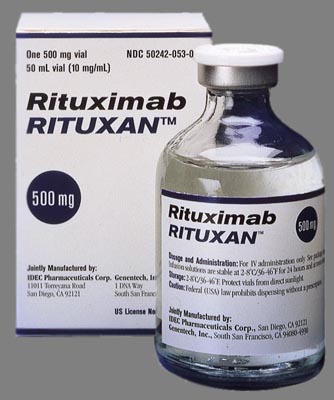 Without getting into too many details, I can break things down into the converging of three events. One, the new chemo infusion I am on, Rituximab. Two, our trip to Montana (and a couple of scientists we met there.) And three, a Medium Chain Triglyceride Nutrient Dense Ketogenic diet.